
Is Your Computer a Bottleneck or an Asset?
Here's the question most families never ask: Is your home computer helping you get things done, or is it quietly stealing 20 minutes from your day, every single day?
If you're clicking "Open" and waiting. Clicking "Save" and staring. Restarting because "maybe this time it'll be faster", your computer isn't a tool anymore. It's a bottleneck. And the worst part? Most people assume the only fix is spending $800 on a new machine.
But what if the problem isn't your hardware, it's that your system has been slowly accumulating digital clutter for months (or years), and nobody's ever shown you how to clear it out?
At Rahvion, we help families turn their home tech from a source of daily frustration into a professional-grade asset, the kind that boots up in seconds, doesn't freeze mid-email, and just works. Today, we're walking you through five steps that can transform your sluggish PC without spending a dime on upgrades.
The Deep Diagnostic: Why Is Your Computer Actually Slow?
Before we dive into fixes, let's talk about what's really happening under the hood. When people say "my computer is slow," they usually mean one of three things:
- It takes forever to boot up (5+ minutes from power button to usable desktop)
- Programs freeze or lag (you click, nothing happens, then everything catches up at once)
- The whole system feels sluggish (like you're typing through molasses)
Here's the root cause most families miss: Your computer isn't broken, it's overloaded.
Every program you install, every file you save, every browser tab you leave open, they all leave a trace. Over time, your system accumulates:
- Startup programs running invisibly in the background (stealing memory before you even open a file)
- Temporary files that were supposed to delete themselves but didn't (clogging up your hard drive)
- Outdated drivers and software that create conflicts (causing random freezes and crashes)
Think of it like this: your computer is a kitchen. When it was new, the counters were clear, the sink was empty, and you could cook a meal in minutes. But now? Dirty dishes are piled up, the trash is overflowing, and you can't find anything. The kitchen still works, it just needs a deep clean.
That's what we're about to do for your PC.
Step 1: Restart Your Computer (No, Really, Do It Weekly)
This sounds almost insulting, right? "Just turn it off and on again?" But here's what most people don't realize: restarting isn't just a troubleshooting step, it's maintenance.
When your computer runs for days (or weeks) without restarting, it accumulates something called memory leaks. Programs open, use up RAM, and then don't fully release it when you close them. Over time, your available memory shrinks to nothing, and everything slows to a crawl.
A proper restart clears all that out. It's like wiping the whiteboard clean at the end of the day.
Here's the rule we teach families: Restart your computer at least once a week. Better yet, enable automatic restarts during your "off hours" (like 2 a.m. on Sunday). Windows and Mac both support this, it's just hidden in your settings.
If you've been running your computer non-stop for 30+ days, restart it right now. You'll be shocked at the difference.
Step 2: Clean Up Your Desktop (It's Not Just About Looks)
Pop quiz: How many icons are sitting on your desktop right now? If the answer is "more than 20," that's part of your slowdown problem.
Here's why: Every icon on your desktop is a file that your computer has to load into memory when it boots up. A cluttered desktop doesn't just look messy, it actively consumes system resources.
The fix:
- Create a folder in your Documents called "Desktop Cleanup"
- Move everything from your desktop into that folder (yes, everything)
- Now, only put back the 5-10 shortcuts or files you actually use daily
This isn't about being a minimalist: it's about giving your computer less work to do at startup. You're not deleting anything; you're just organizing it in a way that doesn't bog down your system.
Bonus tip: Empty your Downloads folder while you're at it. That folder is where installer files go to die, and chances are it's hoarding gigabytes of old setup files you'll never need again.
Step 3: Disable Unnecessary Startup Programs
Here's the silent killer: programs that launch automatically when you turn on your computer.
Right now, there are probably a dozen apps running in your system tray that you didn't open and don't need. Microsoft Teams. Skype. Steam. Adobe Updater. Spotify. Every single one of them is stealing a piece of your computer's attention before you've even opened your email.
How to fix it:
On Windows:
- Press Ctrl + Shift + Esc to open Task Manager
- Click the "Startup" tab
- Look for anything labeled "High impact" or "Enabled" that you don't use daily
- Right-click and select "Disable"
On Mac:
- Go to System Settings (or System Preferences)
- Click "General" → "Login Items"
- Remove anything you don't need at startup
Be cautious here: don't disable anything you don't recognize (like "Windows Security" or "Graphics Driver"). When in doubt, Google the program name first. But things like "Spotify" or "OneDrive" (if you don't use cloud storage)? Disable them. You can always open them manually when you need them.
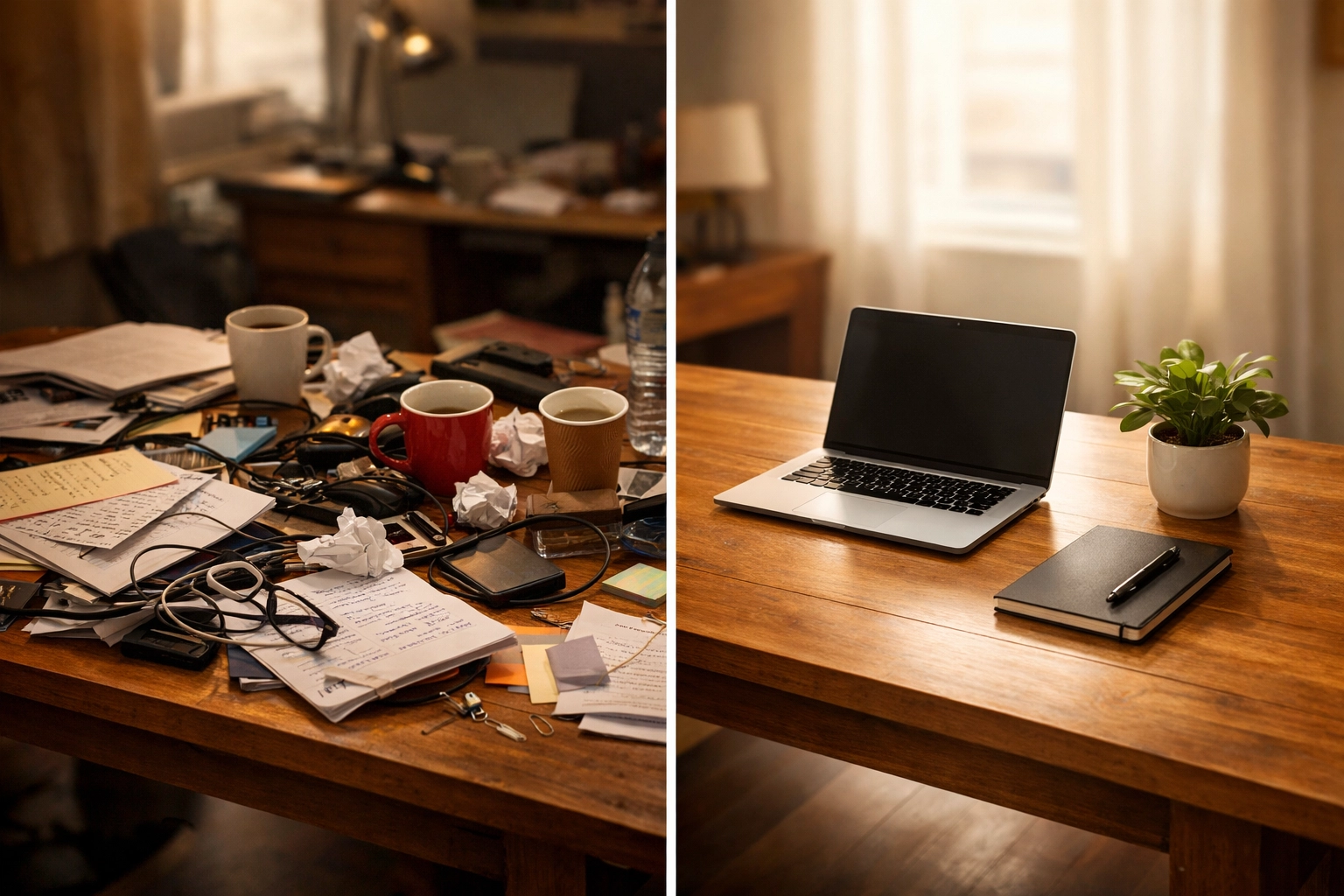
Step 4: Update Windows, macOS, and Drivers
This is the step most families skip because updates feel like an interruption. But here's the truth: outdated software is one of the top causes of poor performance.
Software updates aren't just about new features: they include bug fixes, security patches, and performance improvements. When you skip updates for months, you're running on code that's known to have problems.
How to update:
Windows:
- Click Start → Settings → Windows Update
- Click "Check for updates"
- Install everything, including "Optional updates" (especially driver updates)
Mac:
- Click the Apple menu → System Settings → General → Software Update
- Install all available updates
Here's the deeper issue: outdated drivers (the software that lets your computer talk to hardware like your graphics card or printer) can cause random freezes and crashes. Most people never update them because they don't know they exist.
If your computer is still slow after updating Windows or macOS, search for "[your computer brand] driver update utility" and run it. Dell, HP, Lenovo: they all have tools that scan your system and update drivers automatically.
Step 5: Delete Temporary Files and Empty Your Recycle Bin
Your computer creates temporary files constantly: every time you browse the web, install software, or open a document. These files are supposed to delete themselves, but they don't always. Over time, they pile up and eat into your hard drive space.
Why does this slow you down? If your hard drive is more than 85% full, your computer struggles to find space to work. It's like trying to cook in a kitchen with no counter space left: technically possible, but painfully slow.
How to clean it up:
Windows:
- Type "Disk Cleanup" in the Start menu and open it
- Select your C: drive
- Check all the boxes (especially "Temporary files" and "Recycle Bin")
- Click "Clean up system files" for an even deeper scan
Mac:
- Click the Apple menu → About This Mac → Storage → Manage
- Use the "Recommendations" to clear out old files, empty trash, and remove clutter
Don't forget to actually empty your Recycle Bin (Windows) or Trash (Mac). Deleted files aren't really gone until you do this: they're just sitting in a holding area, still taking up space.
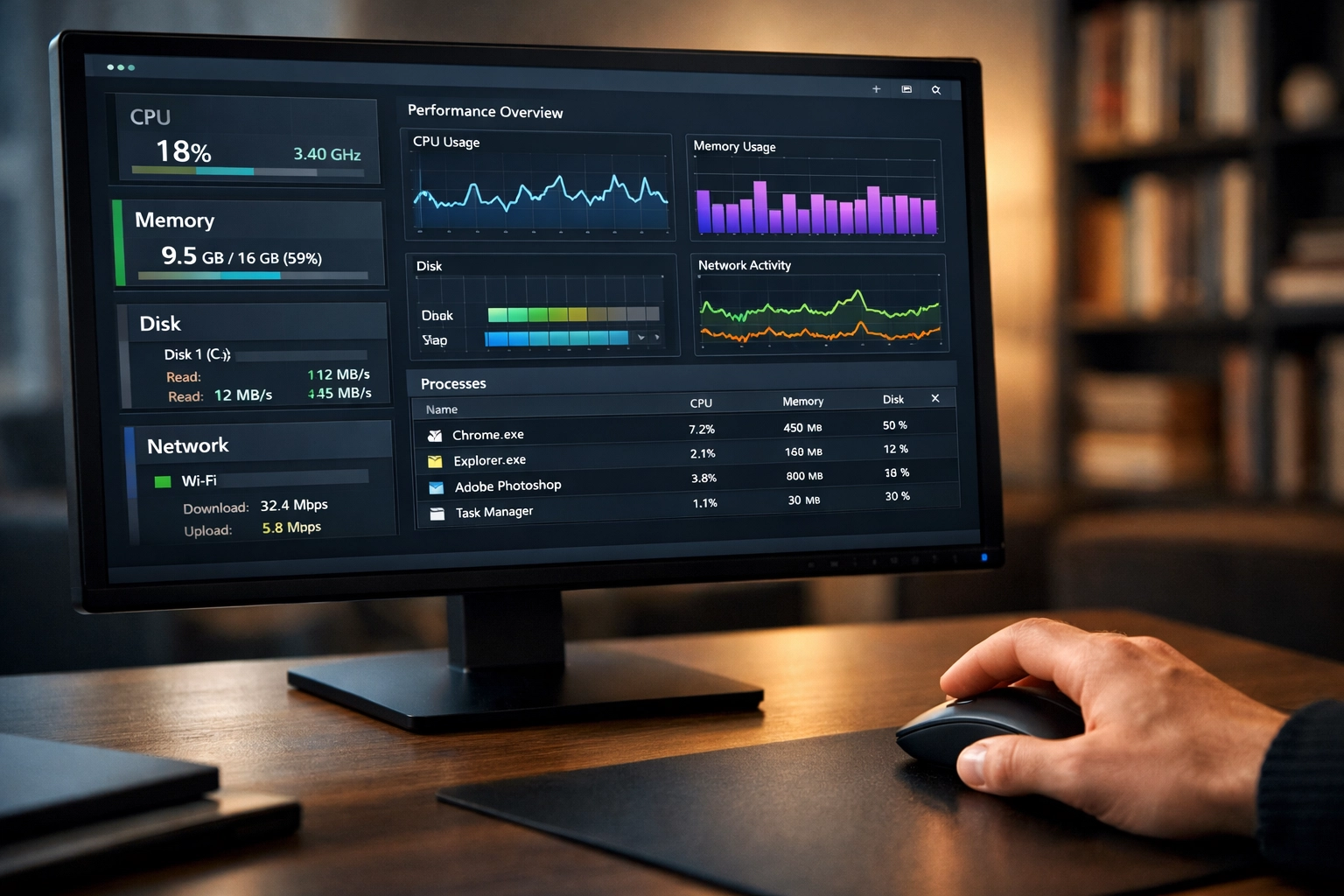
What If It's Still Slow?
If you've done all five steps and your computer is still dragging, you're likely dealing with one of three deeper issues:
- Malware or bloatware running invisibly in the background
- A failing hard drive (especially if you hear clicking sounds)
- Maxed-out RAM (not enough memory for your daily workload)
This is where most families hit a wall. You've done the "easy" maintenance, but diagnosing hardware failure or hidden malware? That requires tools and expertise most people don't have.
At Rahvion, this is exactly what we do. We remotely monitor your home computers for these deeper issues: the ones that don't show up in Task Manager. We catch failing hard drives before they crash. We identify malware that antivirus software misses. And when it's time to upgrade (because sometimes hardware really is the issue), we guide you to the right solution without the upsell tactics you'd get at a big-box store.
We're not here to sell you a new computer. We're here to turn the one you have into a professional-grade asset that actually supports your life instead of slowing it down.
From Bottleneck to Asset: The Bigger Picture
Here's the shift we want you to see: Your home computer isn't just "a thing you use sometimes." In 2026, it's your tax records, your family photos, your kids' homework, your work-from-home lifeline, your connection to aging parents.
When it's slow, unstable, or unreliable, it's not just annoying: it's a daily tax on your time, your patience, and your peace of mind.
The five steps above will buy you speed and stability for now. But if you're reading this and thinking, "I wish someone just handled this for me": that's the kind of thinking that leads families to work with us.
We're America's Personal IT Department. We don't wait for your computer to break. We monitor it, maintain it, and keep it running like the professional-grade tool it should be.
Curious what that looks like in practice? Learn more about Rahvion's home tech support here.
Need help right now? Call us at 410-429-8159 (Mon–Fri, 8 AM–5 PM ET) or email helpdesk@rahvion.com. We'll walk you through it: no judgment, no jargon, just patient guidance.
Leave a Reply