Category: Blog

Your blog category

  • Free Technology Learning Paths: AI, Azure CLI, PowerShell, and CMD

    Free Technology Learning Paths

    Rahvion Learn Academy provides practical, organized technology education for AI assistants, cloud commands, prompt engineering, PowerShell automation, and Windows command-line fundamentals.

    This library is built for clean learning, safe execution, and real-world confidence. Start with the fundamentals, then move into automation, cloud administration, and AI-assisted workflows.

    Choose a Learning Track

    AI & Copilot Automation

    Learn how assistant workflows, agent-style monitoring, approvals, and human review should be structured safely.

    Cloud & Azure CLI

    Practice command patterns for inspecting, creating, managing, and monitoring Azure resources.

    Prompt Engineering

    Use repeatable prompt structures for strategy, content, research, sales, documentation, and execution.

    PowerShell Automation

    Build core scripting skill for Microsoft environments, files, CSVs, functions, error handling, and admin tasks.

    Windows Command Prompt Essentials

    Learn navigation, file commands, networking checks, system information, troubleshooting, and safe command-line habits.

    Recommended Learning Sequence

    1. CMD: Learn basic navigation and troubleshooting.
    2. PowerShell: Move into automation and structured scripting.
    3. Azure CLI: Apply command patterns to cloud resources.
    4. Prompt Engineering: Use AI to plan, document, research, and communicate.
    5. AI Agents: Understand monitoring, approvals, escalation, and safe delegation.

    Track 01: AI & Copilot Automation

    Modern AI assistants are moving from simple chat responses toward monitored workflows. A traditional assistant waits for a prompt; an agent-style assistant watches defined workstreams, surfaces decisions, and notifies a person when attention is needed.

    • Define exactly what the assistant may monitor.
    • Separate recommendations from actions.
    • Require approval for high-impact changes.
    • Keep logs of decisions and actions.

    Track 02: Cloud & Azure CLI

    Azure CLI is useful because commands are repeatable, documentable, and automation-friendly.

    az login
    az account show
    az group list
    az vm list
    az monitor activity-log list

    Track 03: Prompt Engineering

    • /businessidea [market] – generate startup ideas and opportunity angles.
    • /hook [topic] – create content hooks for short-form posts.
    • /plan [goal] – turn an outcome into steps, owners, and deadlines.
    • /research [topic] – build a source-aware research brief.
    • /decision [options] – compare tradeoffs and recommend a path.

    Track 04: PowerShell Automation

    Get-Help
    Get-Command
    Get-Process
    Get-Service
    Import-Csv .users.csv

    Use -WhatIf, test on non-production systems, and keep logs for scripts that change users, devices, files, or security settings.

    Track 05: Windows Command Prompt Essentials

    cd
    dir
    ipconfig /all
    ping example.com
    tracert example.com

    Be careful with delete, format, diskpart, and system-changing commands. Confirm the path and target before running destructive commands.

  • How to Spot (and Avoid) Tech Support Scams: A Guide for Homeowners

    Tech support scams are one of the most common — and effective — forms of consumer fraud. They target people of all ages but are especially prevalent among seniors. Knowing how to spot them could save you thousands of dollars and untold stress.

    What Is a Tech Support Scam?

    Tech support scams are schemes where criminals pretend to be from Microsoft, Apple, your internet provider, or a legitimate tech company. They claim your computer has a serious problem — usually a virus or security breach — and offer to “fix” it for a fee. In reality, there’s nothing wrong with your computer, and paying them often makes things worse.

    How These Scams Work: The 3 Most Common Tactics

    1. The Scary Pop-Up

    You’re browsing the web and suddenly a giant pop-up appears, often with a loud alarm sound. It claims your computer is infected with a virus or your personal information has been stolen. It displays a “Microsoft” or “Apple” logo and a phone number to call immediately.

    The truth: Microsoft and Apple never send pop-up messages with phone numbers. If you see one, it’s a scam — 100% of the time. Close the tab (or force-quit your browser if it won’t close). Do not call the number.

    2. The Unsolicited Phone Call

    Someone calls claiming to be from Microsoft, Apple, or your internet provider. They say they’ve detected a problem with your computer and need remote access to fix it. They might have some basic information about you, which makes them seem legitimate.

    The truth: Microsoft, Apple, and internet providers do not proactively call customers about computer problems. If you get an unsolicited call like this, hang up immediately.

    3. The Search Engine Trap

    You search for a company’s tech support phone number online. The first result looks legitimate — it has the company’s logo and name — but it’s actually a scammer’s fake website that put themselves at the top of search results with paid ads.

    The truth: Always navigate directly to a company’s official website (like apple.com or microsoft.com) rather than searching for their phone number. Look for “Ad” labels on search results — these can be purchased by anyone.

    Red Flags to Watch For

    • Urgent language: “Your computer is INFECTED” or “Act NOW or lose all your data”
    • Requests for gift card payment (a scammer favorite)
    • Requests for remote access to your computer
    • Caller knows your name but you didn’t contact them
    • They ask for your bank account, credit card, or Social Security number
    • The pop-up or caller mentions specific file names on your computer (these are standard Windows files, not evidence of infection)

    What to Do If You Think You’ve Been Scammed

    1. Stop all contact immediately. Don’t answer calls from that number.
    2. Change your passwords on all important accounts — especially email and banking — from a different device if possible.
    3. Contact your bank if you provided payment information or noticed any unauthorized charges.
    4. If they had remote access, consider running a malware scan or having a trusted technician review your computer.
    5. Report it to the FTC at reportfraud.ftc.gov.

    Protecting Loved Ones Who Are at Risk

    If you have elderly parents or relatives who are less tech-savvy, sit down with them and show them this article. The best protection is awareness. Tell them: if anyone ever calls claiming there’s a problem with their computer, they should hang up and call you first.

    Need help verifying whether your computer actually has a problem, or removing software a scammer may have installed? Contact Rahvion for a free, honest assessment — from a team that will never pressure you or use scare tactics.

  • 10 Ways to Speed Up Your Home Wi-Fi (Without Calling Your Provider)

    Slow Wi-Fi is one of the most frustrating tech problems homeowners face. The good news: in most cases, you don’t need to call your internet provider or buy new equipment. These 10 tweaks can dramatically improve your speed and reliability.

    1. Restart Your Router

    This is the IT equivalent of “turn it off and on again” — and it works surprisingly often. Routers run 24/7 and can develop memory leaks and connection issues over time. Unplug your router, wait 30 seconds, and plug it back in. Do this monthly as routine maintenance.

    2. Move Your Router to a Central Location

    Wi-Fi signal radiates outward in all directions. If your router is in a corner, half the signal goes into your neighbor’s yard. Move it to a central location in your home — ideally on a shelf or elevated surface, not on the floor or inside a cabinet.

    3. Reduce Physical Interference

    Wi-Fi signals are weakened by walls, floors, and certain materials. The biggest offenders:

    • Thick concrete or brick walls — signal barely passes through
    • Microwaves and cordless phones — operate on the same 2.4GHz frequency and can interfere
    • Fish tanks and large mirrors — surprisingly effective at blocking signals
    • Metal filing cabinets and appliances — act as shields

    4. Switch to the 5GHz Band

    Modern routers broadcast on two frequencies: 2.4GHz and 5GHz. If you’re close to your router, connect to the 5GHz network — it’s significantly faster (though it has less range). Save the 2.4GHz network for devices far from the router or older devices that don’t support 5GHz.

    In your Wi-Fi settings, you’ll often see two networks: “MyNetwork” and “MyNetwork_5G” (or similar). Connect to the _5G version when possible.

    5. Change Your Wi-Fi Channel

    If your neighbors have routers broadcasting on the same channel as yours, you’re essentially competing for airspace. Log into your router’s admin panel and experiment with different channels. For 2.4GHz, channels 1, 6, and 11 don’t overlap — try each one to see which is least congested.

    6. Update Your Router’s Firmware

    Router manufacturers release firmware updates that often include performance improvements and bug fixes. Log into your router’s admin panel (usually at 192.168.1.1 or 192.168.0.1) and check for firmware updates in the settings.

    7. Limit Bandwidth-Heavy Devices

    Some devices consume massive amounts of bandwidth: 4K streaming, video calls, gaming, and large downloads can all slow down other devices. Check your router’s admin panel for a “QoS” (Quality of Service) feature, which lets you prioritize certain devices or types of traffic.

    8. Check for Wi-Fi Leeches

    If your neighbor knows your Wi-Fi password, they might be using your connection without you realizing it. Log into your router admin panel and look for a list of connected devices. Remove anything you don’t recognize and change your Wi-Fi password.

    9. Use a Wired Connection for Critical Devices

    For devices that need consistent, fast internet — smart TVs, gaming consoles, desktop computers, work-from-home setups — plug them directly into your router with an Ethernet cable. Wired connections are almost always faster and more reliable than Wi-Fi.

    10. Upgrade Your Router

    Routers over 3–4 years old may not support the latest Wi-Fi standards (Wi-Fi 5 and Wi-Fi 6) and often become slower over time. If your router is aging, upgrading to a modern Wi-Fi 6 router or mesh system can provide a dramatic improvement — especially in larger homes or with many connected devices.

    Still Having Problems?

    If you’ve tried everything and your Wi-Fi is still slow or unreliable, there may be a deeper issue — with your internet provider’s service, your router’s configuration, or your home’s specific layout. Schedule a free consultation with our team and we’ll diagnose the problem and recommend the right solution for your specific home.

    You can also use our free Wi-Fi Coverage Estimator to see how many access points your home needs for full coverage.

  • 5 Steps to Speed Up a Slow Computer (Without Buying a New One)

    Before you spend $500–$1,000 on a new computer, try these five proven steps. In most cases, a slow computer can be dramatically improved — sometimes in under an hour — without spending a dime.

    Why Computers Slow Down Over Time

    Computers don’t just “wear out” like a car engine. They slow down for specific, fixable reasons: software bloat, too many startup programs, insufficient storage space, malware, or outdated hardware trying to run modern software. Let’s tackle each one.

    Step 1: Restart Your Computer (Really)

    This sounds obvious, but most people never fully restart their computers — they just close the lid or put it to sleep. A full restart clears your RAM, applies pending updates, and resets background processes that have been running for weeks.

    How to do it: Windows: Start > Power > Restart. Mac: Apple menu > Restart. Do this at least once a week.

    Step 2: Disable Startup Programs

    Every app you install wants to launch itself automatically when you start your computer. Over time, dozens of programs are running in the background, eating up memory and slowing boot times.

    On Windows 10/11: Right-click the taskbar > Task Manager > Startup tab. Disable anything you don’t need immediately when you log in (Spotify, Dropbox, Skype, etc. can all be opened manually when needed).

    On Mac: System Settings > General > Login Items. Remove apps you don’t need at startup.

    Step 3: Free Up Storage Space

    When your storage drive is more than 80–85% full, your computer slows down significantly. Your operating system needs empty space to work efficiently.

    • Empty the Recycle Bin/Trash — files there still take up space
    • Delete duplicate files and old downloads — your Downloads folder is often a massive time capsule
    • Use Disk Cleanup (Windows) — search “Disk Cleanup” in the Start menu and run it
    • Move photos and videos to an external drive or cloud — these are usually the biggest space hogs

    Aim to keep at least 15–20% of your storage free at all times.

    Step 4: Check for Malware

    Malware and viruses are a leading cause of mysterious slowdowns. They run in the background, using your computer’s resources for their own purposes (sending spam, mining cryptocurrency, etc.).

    Free tools to scan with:

    • Windows: Windows Security (built-in) > Virus & threat protection > Quick scan
    • Mac: Download Malwarebytes (free version) and run a scan

    If the scan finds something, follow the prompts to remove it — or contact us for help.

    Step 5: Update Everything

    Outdated operating systems and drivers can cause significant performance issues. Updates often include bug fixes and optimizations that speed things up.

    • Windows Update: Settings > Windows Update > Check for updates
    • Mac: System Settings > General > Software Update
    • Drivers (Windows): Device Manager > right-click any device > Update driver

    When These Steps Aren’t Enough

    If your computer is still slow after trying all five steps, the issue may be hardware-related. Common culprits include:

    • Insufficient RAM (especially if you have 4GB or less) — upgrading to 8–16GB is often inexpensive and transformative
    • Old hard drive — replacing a spinning hard drive with an SSD (solid-state drive) is the single biggest speed improvement you can make
    • Overheating — dust buildup inside the computer can cause it to throttle performance to stay cool

    Our team can diagnose and fix any of these issues — often for far less than the cost of a new computer. Schedule a free consultation and we’ll give you an honest assessment.

  • The Complete Home Cybersecurity Checklist: 15 Steps to Protect Your Family

    Cybercriminals don’t just target businesses. In fact, home users are increasingly their favorite targets — because most people think “it won’t happen to me.” This comprehensive checklist covers everything you need to secure your home network and protect your family’s digital life.

    Why Home Cybersecurity Matters More Than Ever

    The average home now has 15–25 internet-connected devices — from smartphones and laptops to smart TVs, thermostats, and doorbell cameras. Each one is a potential entry point for hackers. But the good news: most cyberattacks are completely preventable with basic precautions.

    ✅ The Complete Home Cybersecurity Checklist

    Your Wi-Fi Network

    • Change your router’s default password. The default admin password (like “admin/admin”) is publicly known. Change it to something unique and strong.
    • Use WPA3 or WPA2 security. Check your router settings and make sure you’re not using the outdated WEP protocol.
    • Set up a guest network. When friends or neighbors connect to your Wi-Fi, give them a separate guest network that can’t access your main devices.
    • Keep your router’s firmware updated. Router manufacturers release security updates regularly. Check monthly.

    Your Computers & Devices

    • Enable automatic updates. Operating system and app updates often include critical security patches. Turn on automatic updates and let them run.
    • Install reputable antivirus software. Windows Defender (built into Windows) is solid. For Macs, Malwarebytes is a great free option.
    • Enable your device’s firewall. This is usually on by default but worth checking.
    • Encrypt your hard drive. Windows has BitLocker; Macs have FileVault. If your laptop is stolen, encryption makes your data unreadable.

    Your Passwords & Accounts

    • Use a password manager. Tools like Bitwarden (free), 1Password, or LastPass generate and store unique, complex passwords for every account.
    • Enable two-factor authentication (2FA). Add 2FA to your email, bank, and any account that offers it. This stops 99% of automated attacks.
    • Check for data breaches. Visit haveibeenpwned.com and enter your email to see if your accounts have been compromised.

    Your Data & Backups

    • Follow the 3-2-1 backup rule. Keep 3 copies of important data, on 2 different media types, with 1 stored off-site (like cloud storage).
    • Back up automatically. Use Windows Backup, Time Machine (Mac), or a cloud service like Backblaze. Set it and forget it.
    • Test your backups. Periodically restore a file from your backup to make sure it actually works.

    Signs You May Already Have a Problem

    • Your computer is suddenly much slower than usual
    • Programs open or close on their own
    • You see pop-up ads you can’t close
    • Friends say they received strange emails from you
    • Your antivirus has been disabled without you doing it

    If you notice any of these signs, don’t panic — but do act quickly. Contact Rahvion for a free assessment and we’ll help you identify and fix the problem.

    Need Help Implementing Any of This?

    Security can feel overwhelming, but it doesn’t have to be. Our team specializes in helping homeowners set up exactly the protections described in this checklist — in plain English, at your pace. Schedule a free consultation and we’ll walk through everything together.

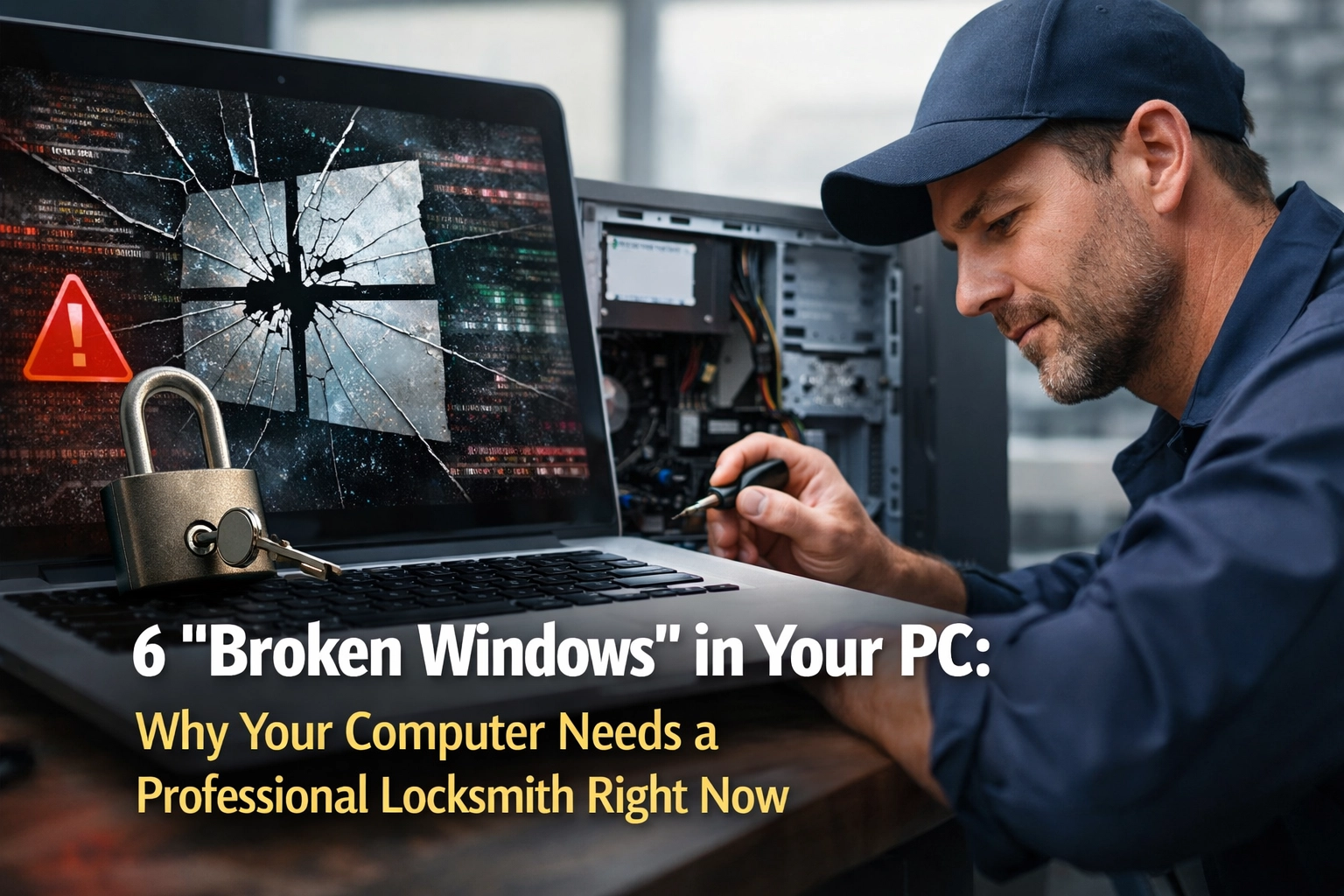
  • 6 “Broken Windows” in Your PC: Why Your Computer Needs a Professional Locksmith Right Now

    6 “Broken Windows” in Your PC: Why Your Computer Needs a Professional Locksmith Right Now

    You know that feeling when you see a house with a broken window? Maybe the grass is overgrown, there's trash piling up by the curb, and that window has been cracked for months. Something about it just feels wrong. It signals neglect. It tells potential burglars: "Nobody's really watching this place."

    Your computer works the same way.

    When you click "Remind Me Later" on that Windows update notification for the third time this week, you're not just postponing a minor inconvenience. You're leaving a broken window on your digital home. And right now, actual burglars, professional cybercriminals, are walking down your digital street, checking every house for exactly those kinds of signals.

    Here's what most people don't know: Microsoft just confirmed that hackers are already actively exploiting six specific vulnerabilities in Windows. Not vulnerabilities they might use someday. Ones they're using right now, today, to break into computers just like yours.

    The "Update Later" Button We All Click

    Let's be honest: we've all done it. That little pop-up appears in the corner of your screen while you're in the middle of watching a video, writing an email, or video chatting with your grandkids. "Windows needs to restart to install important updates."

    And you think, Not right now. I'm busy. Maybe tonight. Or this weekend.

    It's totally normal. You're not being careless or lazy. You're just trying to live your life without constant interruptions from your computer.

    But here's the question nobody asks: Why does your computer need these updates so urgently in the first place?
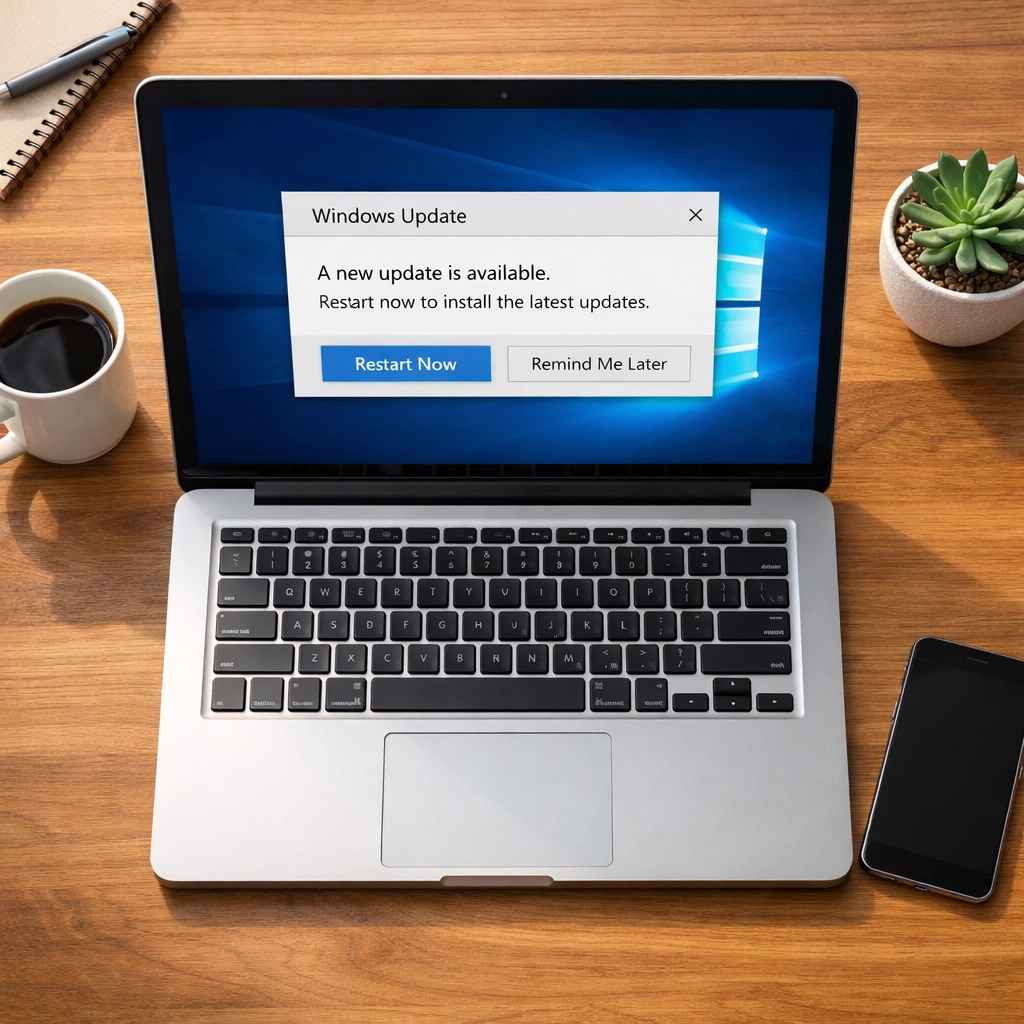
    Home office desk with laptop showing Windows update notification reminder pop-up

    Why Software Has "Broken Windows"

    Think of software like a house with thousands of windows, doors, and little access points. When Microsoft builds Windows, they're constructing an incredibly complex structure, millions of lines of code working together to let you browse the web, check email, and store your family photos.

    The problem? In a structure that complex, there are always flaws. Little cracks. Hidden weaknesses that even Microsoft's best engineers didn't notice during construction.

    These flaws are called "vulnerabilities," and the really dangerous ones are called "Zero-Days." That's tech-speak for: "The bad guys found the broken window before the good guys could fix it."

    When Microsoft releases an urgent update, they're essentially saying: "We just discovered six broken windows in your house, and we're seeing burglars already using them to break in. Here's the patch to fix them, please install it now."

    The 6 "Broken Windows" Being Exploited Right Now

    In Microsoft's February 2026 security update, they patched 59 total vulnerabilities. That's 59 broken windows. But six of them were being actively exploited in the wild: meaning hackers were already using them before Microsoft even announced the fixes.

    [TECH REVIEW NEEDED: Specific CVE details for Feb 2026 Zero-Days, including CVE-2026-21510 and other confirmed exploits]

    What do these broken windows let hackers do? Here's the scary part:

    • Full system access: They can take complete control of your computer remotely
    • Credential theft: They can watch you type passwords and banking information
    • Silent installation: They can install malware that lives quietly in your system for months
    • Network spreading: Once they're in your PC, they can spread to other devices on your home network

    The most dangerous part? You won't see any obvious symptoms. Your computer won't slow down. You won't get scary pop-ups or warning messages. The whole point is to stay invisible.

    The "Digital Parasite" Problem

    This is what security experts are now calling "Digital Residency" or the "Digital Parasite" trend. Instead of loud, destructive ransomware that locks your files and demands payment, modern hackers prefer to be quiet houseguests.

    They want to live in your computer undetected, watching everything you do. They're harvesting:

    • Login credentials for your bank accounts
    • Social Security numbers from tax documents
    • Family photos that could be used for identity theft
    • Email passwords that give access to password reset links for everything else

    Industry data shows a 38% drop in obvious ransomware attacks. That doesn't mean cybercrime is decreasing: it means it's getting smarter and harder to detect.

    Think of it this way: A burglar who smashes your window and steals your TV gets caught quickly. But a burglar who quietly copies your house key and comes back every night to photograph your mail? That burglar can operate for years without you ever knowing.
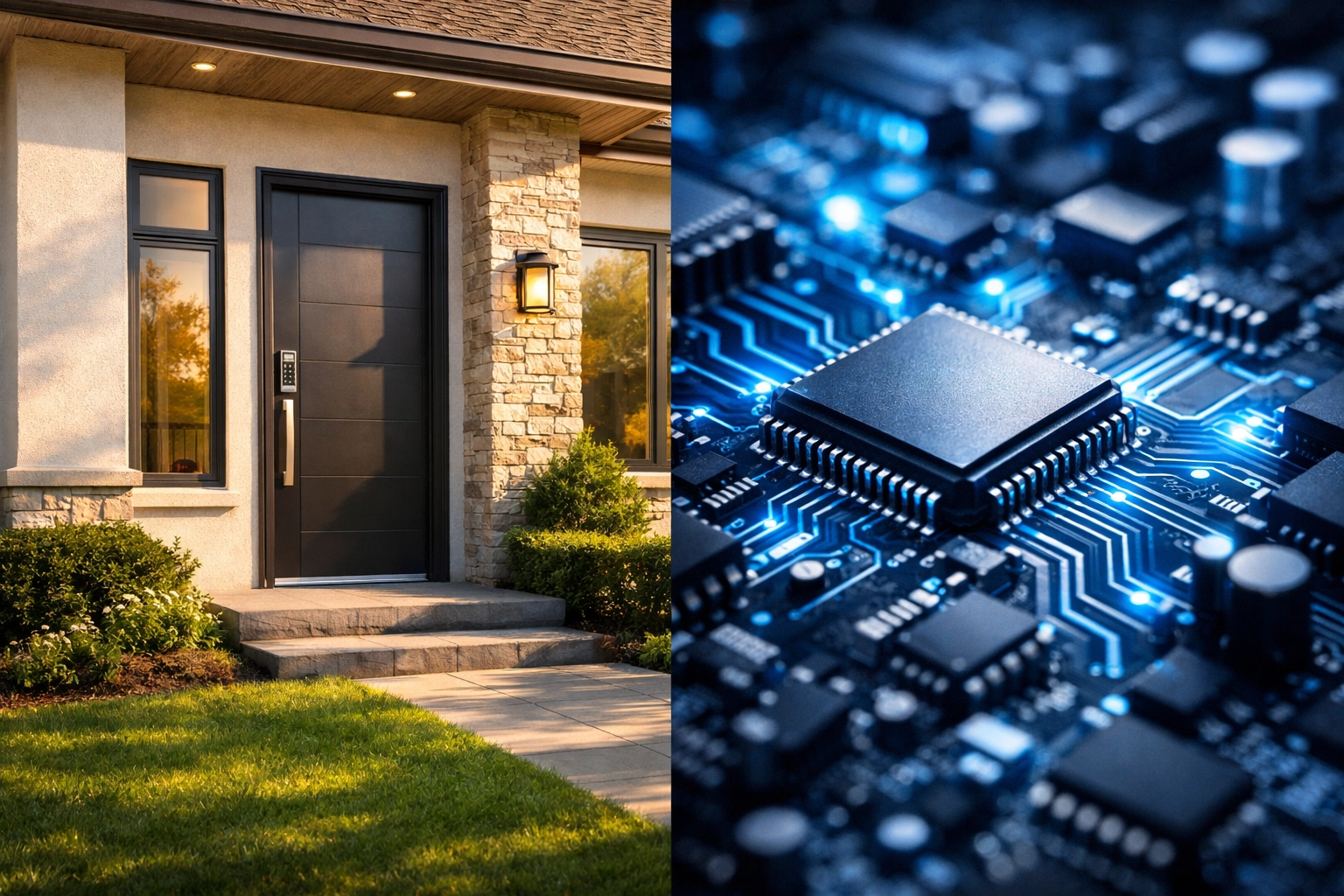
    Comparison of secure home exterior and computer motherboard showing digital security parallels

    Why "Just Install Antivirus" Isn't Enough

    A lot of people think, "I have antivirus software, so I'm protected." And that's a reasonable assumption. But here's the thing about Zero-Day vulnerabilities: By definition, antivirus software doesn't know about them yet.

    Antivirus works by recognizing patterns: digital "fingerprints" of known malware. But when a hacker is exploiting a brand-new, just-discovered vulnerability, there are no fingerprints yet. The antivirus software is looking for a criminal it's never seen before, with no photo to go on.

    The only way to close these broken windows is to install the security patches that fix the underlying flaw in the software itself. That's why those updates are so critical.

    And this is where most home users hit a wall. Because the questions start piling up:

    • How do I know which updates are actually critical?
    • What if the update breaks something else on my computer?
    • Do I need to update my router too? My printer? My smart TV?
    • How do I even check if I've already been compromised?

    This is the gap between consumer-grade "do it yourself" tech and professional-grade infrastructure.

    The Professional "Locksmith" Approach

    When you have a broken lock on your front door, you don't watch a YouTube tutorial and try to fix it yourself. You call a locksmith. Someone who understands the mechanics, has the right tools, and can assess whether your lock is just worn out or if someone has already tampered with it.

    Your computer deserves the same level of professional care.

    At Rahvion, we don't wait for you to see a problem. We monitor your systems 24/7 for exactly these kinds of threats. When Microsoft releases a critical security patch, we don't send you a notification asking you to click "Update Later." We apply the patch immediately, test it to make sure nothing breaks, and verify that your system is secure.

    Here's what that looks like in practice:

    1. Proactive Monitoring: We track security bulletins from Microsoft, Apple, and every major software vendor you use. When a Zero-Day is announced, we already know about it before you see a news headline.

    2. Immediate Patching: Critical updates are applied within hours, not days or weeks. We schedule them during off-hours when you're not using your computer, so you never experience an interruption.

    3. Verification Testing: After an update is applied, we verify that your system boots correctly, your programs still work, and there are no conflicts with your specific hardware or software setup.

    4. Whole-Network Security: We don't just patch your PC: we secure your router, update firmware on your smart devices, and make sure every entry point to your digital home is locked tight.

    5. Breach Detection: If a system has already been compromised, we have tools to detect the "digital parasite" before it can do real damage. We look for the subtle signs that someone has been quietly living in your system.
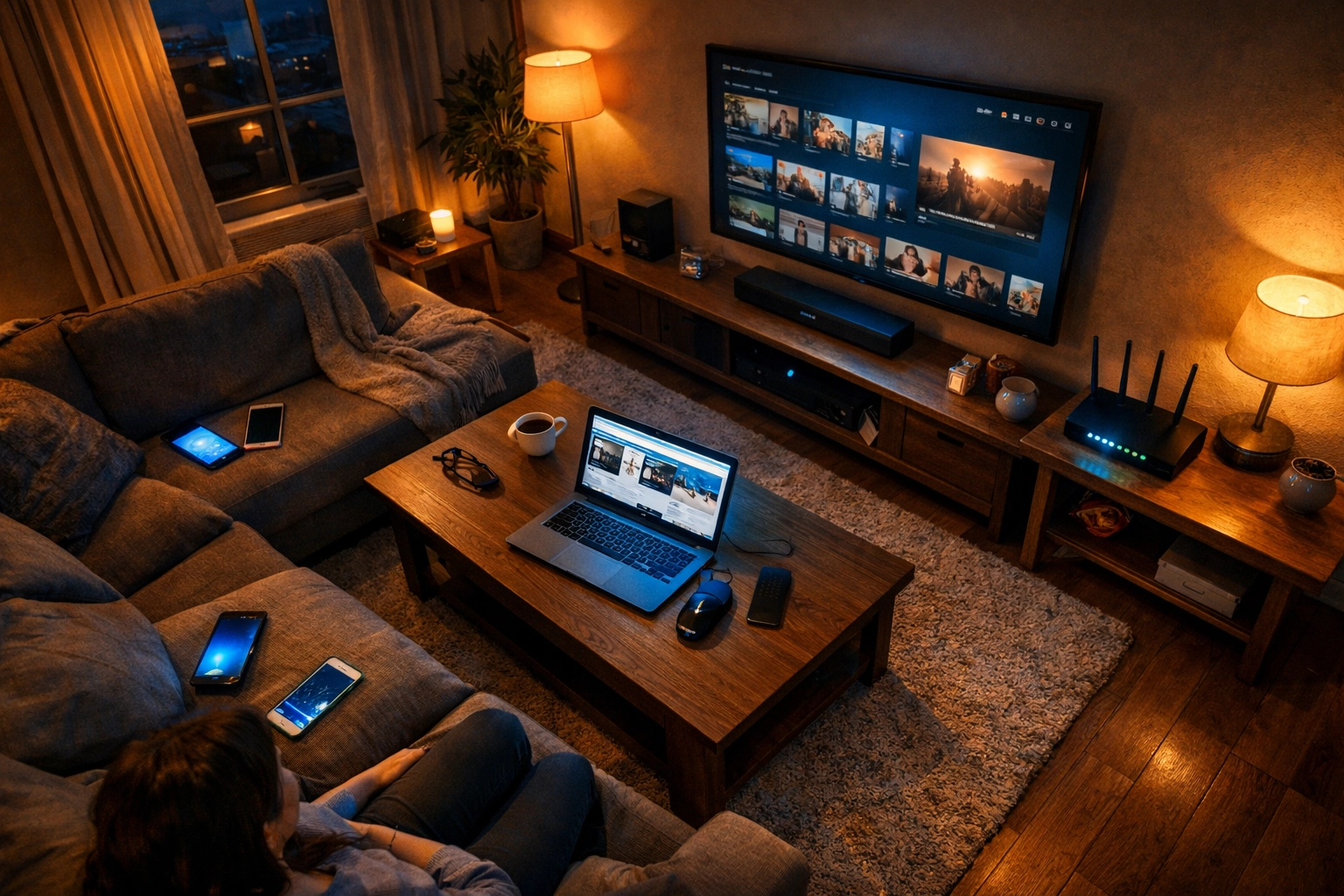
    Family living room with connected devices including laptop, smartphones, TV, and WiFi router

    What "Peace of Mind" Actually Means

    A lot of companies talk about giving you "peace of mind." But what does that really mean?

    For most home users, peace of mind is knowing that you can click a link in an email, browse a website, or pay a bill online without constantly second-guessing: Is this safe? Am I about to get hacked?

    It's the difference between walking into your house at night and instinctively checking every room because you're not sure if you locked the door… versus walking in confidently because you know a professional verified every lock, every window, every entry point.

    That's what professional IT support does. It removes the invisible mental load of wondering whether your digital life is secure.

    Is Your Digital "House" Locked Up Tight?

    Here's the reality check: If you've ever clicked "Remind Me Later" on a Windows update, you probably have at least one broken window right now. And if your router is more than three years old and has never been updated, your front door might be wide open.

    Most people don't realize they have a problem until it's too late. The bank calls about unusual charges. A family member gets a weird email from your account. Your computer suddenly won't boot because all your files have been encrypted by ransomware.

    But it doesn't have to be that way.

    What if your home technology just… worked? What if updates happened automatically, security was monitored by professionals, and you could trust that your digital life was as secure as your physical home?

    That's not a fantasy. That's just what professional-grade IT support looks like.

    If you're wondering whether your systems are actually secure: or if you've been living with "broken windows" and just didn't know it: we can help. We offer a Free Home Security Audit where we check your entire digital infrastructure and show you exactly where the vulnerabilities are.

    No pressure, no sales pitch. Just a clear assessment from someone who understands the mechanics.

    Because here's the thing: You shouldn't have to become an IT expert just to keep your family safe online. That's our job. You just need to know who to call.


    Rahvion | Professional IT Support for Families
    📞 Call Us: 410-429-8159
    📧 Email: helpdesk@rahvion.com
    🕐 Hours: Monday–Friday, 8 AM–5 PM

    Explore Our Services | View Pricing | Learn More for Families
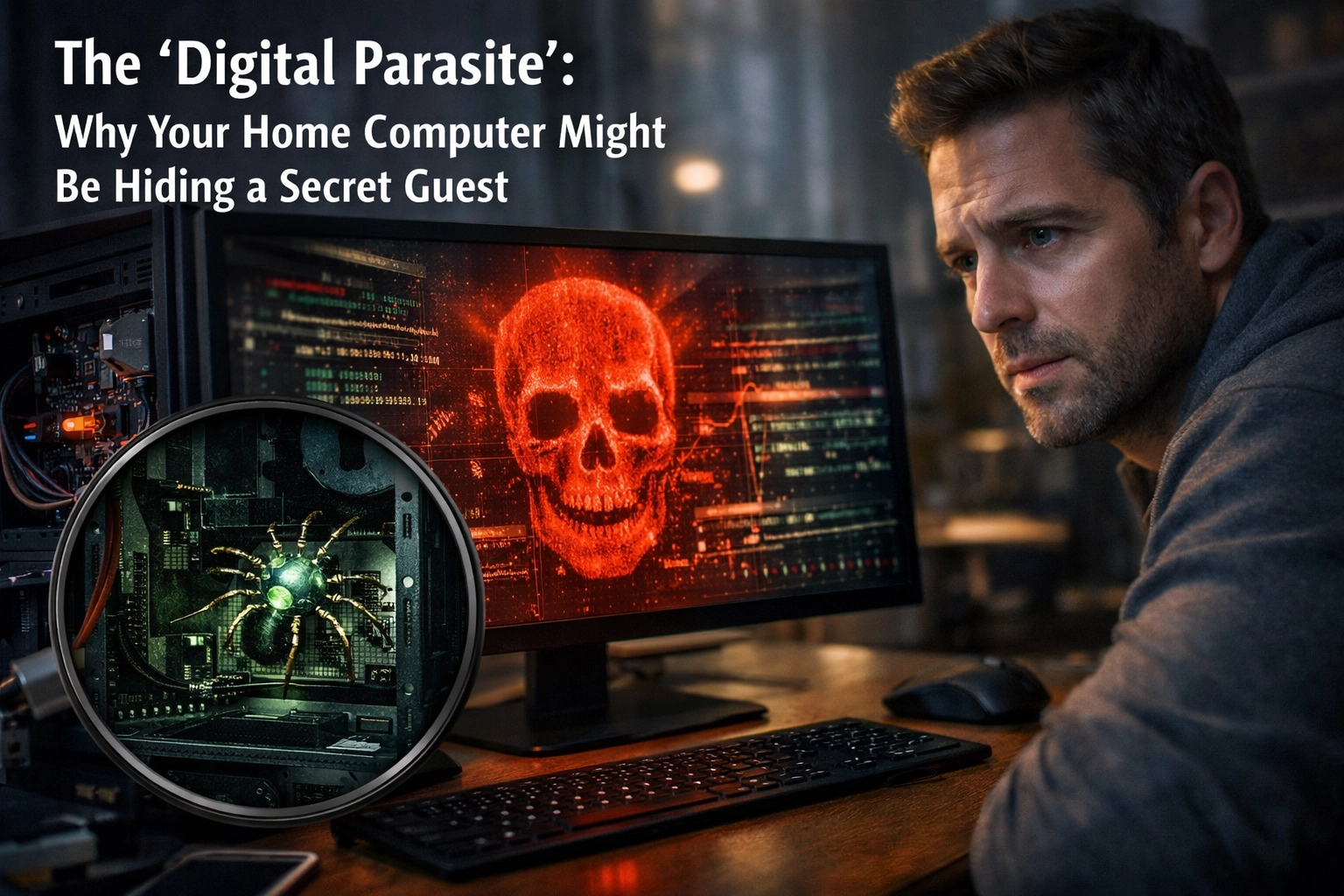
  • The 'Digital Parasite': Why Your Home Computer Might Be Hiding a Secret Guest

    The 'Digital Parasite': Why Your Home Computer Might Be Hiding a Secret Guest

    Your home technology should be working for you: not hiding something from you.

    Most of us think about our computers like we think about our appliances. If the dishwasher stops mid-cycle or the fridge starts making weird noises, we know something's wrong. But what if your refrigerator looked perfectly fine… while quietly leaking all your grocery lists and family schedules to a stranger down the street?

    That's the shift happening in cybercrime right now. The loud, obvious threats: the flashing pop-ups, the frozen screens, the ransomware demands: are being replaced by something far more insidious: the Digital Parasite. This is malware that doesn't want to break your computer. It wants to live there, unnoticed, for as long as possible.

    And if your home tech setup hasn't been professionally reviewed in the last year or two, there's a real chance you're already hosting one.

    What You're Seeing (Or Not Seeing)

    Here's the tricky part: parasitic malware is designed to be invisible. You won't get a scary warning. Your computer won't grind to a halt. Everything will feel normal: maybe even perfectly fine.

    But if you look closely, you might notice subtle signs:

    • Your computer takes a little longer to start up than it used to
    • Programs occasionally freeze for a few seconds, then recover
    • Your Wi-Fi seems slower, but only sometimes
    • You get logged out of accounts unexpectedly
    • Your router's lights are blinking more than usual, even when no one's using the internet

    If you've been brushing these off as "just how computers get when they're older," you're not alone. Most people assume slowdowns are normal aging. And honestly? That's exactly what these parasites are counting on.

    TECH REVIEW NEEDED: Verify claim about parasitic malware avoiding system crashes and prioritizing stealth over visible damage.

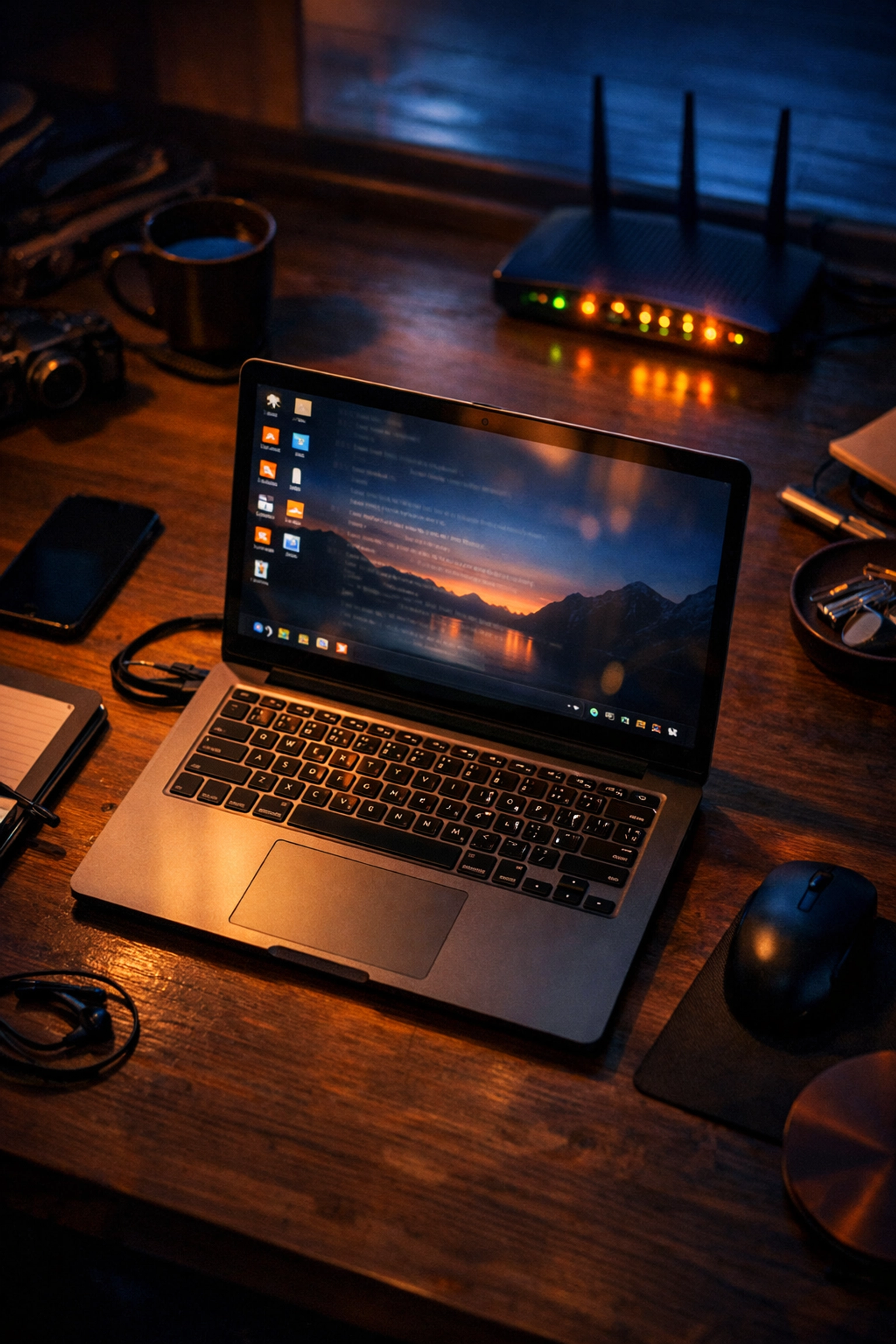
    Overhead view of a home office desk at dusk with a laptop and blinking Wi-Fi router, hinting at hidden malware activity

    What It's Actually Costing You

    Let's talk about what this quiet infection is doing while you're trying to work, pay bills, or video call your grandkids.

    Time. Every "small" delay adds up. If your computer takes an extra two minutes to boot and you restart it twice a week, that's over three hours a year just waiting. Multiply that across email slowdowns, browser lag, and random freezes.

    Stress. You start second-guessing yourself. Did I click something I shouldn't have? Is this normal? Should I call someone? That low-grade anxiety becomes background noise in your day.

    Trust erosion. You stop relying on your tech for things that matter. You avoid online banking on your home computer. You don't save important documents there anymore. Your own equipment becomes something you can't fully trust: and that's exhausting.

    Relationship friction. When the family computer is "acting weird again," someone gets blamed for "downloading something." Innocent clicks turn into household tension.

    And here's the invisible cost: you start making decisions around your tech's limitations instead of your actual needs. That's when your home technology stops being an asset and becomes a bottleneck.

    The Real Risk Hiding Underneath

    Most parasitic infections aren't trying to crash your system. They're after something far more valuable: your data.

    While you're watching Netflix or checking email, malware is quietly working in the background. It's logging your keystrokes. It's copying files. It's watching which websites you visit, which passwords you type, and which family photos you store.

    Here's what modern parasites are built to steal:

    • Online banking credentials and credit card numbers typed into "secure" forms
    • Email account passwords (which can unlock password resets for everything else)
    • Personal identification details like birthdates, Social Security numbers, and addresses
    • Family photos and private documents stored locally
    • Your home network itself: turning your router into a permanent backdoor

    TECH REVIEW NEEDED: Verify claim about parasitic malware capabilities including keystroke logging, credential theft, and router backdoor establishment.

    And here's the part that keeps security professionals up at night: you might not know for months, or even years. Unlike ransomware (which announces itself immediately), parasitic malware is patient. Attackers use stolen credentials slowly and carefully to avoid detection.

    By the time you realize something's wrong: maybe you get a fraud alert from your bank, or a friend says they received a weird email "from you": the damage has already spread far beyond your computer.

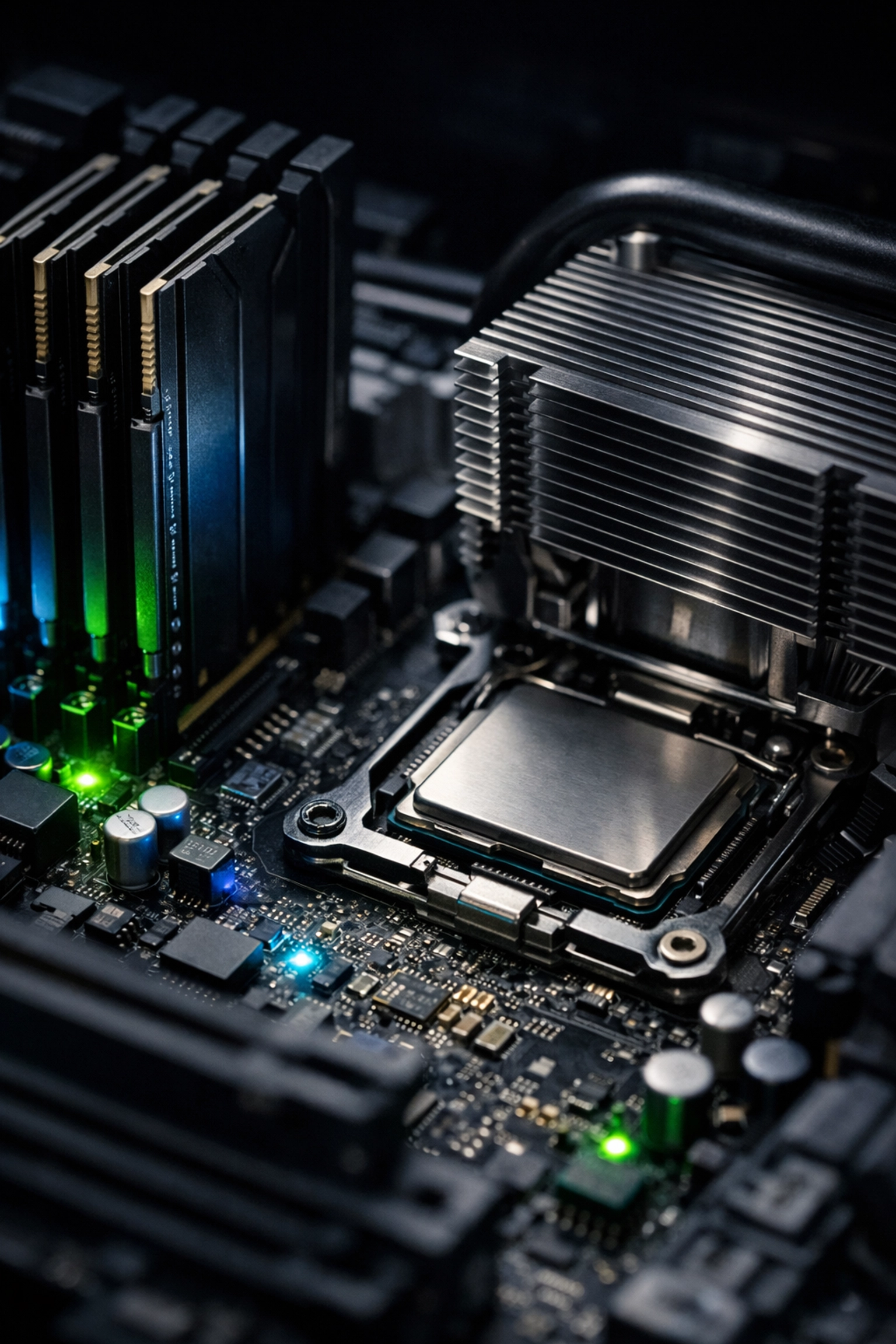
    Split-screen of a stressed woman with a frozen laptop and close-up of a computer motherboard suggesting invisible malware threats

    How This Happens (And Why It's Not Your Fault)

    If you've been clicking "Remind Me Later" on software updates, or if your Wi-Fi router is the same one the cable company installed three years ago and you haven't touched it since: you're normal. Most of us are managing homes, jobs, and families. Router firmware updates are not on anyone's weekly to-do list.

    But here's what's happening behind the scenes:

    Your router is the front door to your digital home. And if it's running outdated software, that door might have a broken lock. Legacy routers: especially older D-Link DSL models: have critical vulnerabilities that attackers are actively exploiting right now in 2026. They're not just "trying the doorknob." They're walking right in.

    TECH REVIEW NEEDED: Verify specific router vulnerability details for D-Link DSL models and active exploitation status in Feb 2026.

    Once inside your network, malware spreads quietly:

    • Email attachments that look legitimate but contain hidden code
    • Infected USB drives from well-meaning friends or family
    • Fake software updates disguised as Adobe or Windows prompts
    • Compromised websites you visit regularly that were hacked without your knowledge

    The infection doesn't announce itself. It installs silently, disables your antivirus (or hides from it), and begins its work.

    How Rahvion Removes the Parasite (And Closes the Door)

    At Rahvion, we don't just "run a virus scan and hope for the best." We treat your home network like the professional infrastructure it should be: because that's the only way to catch parasitic infections that consumer-grade tools miss.

    Here's our diagnostic process:

    1. Full network audit. We don't just check your computer: we check everything connected to your home network, including that router in the corner you haven't thought about in years.

    2. Deep malware detection. We use enterprise-grade tools designed to find hidden processes, rootkits, and persistent backdoors that free antivirus software isn't built to catch.

    3. Router security review. We check your router's firmware, update it if necessary, change default credentials, and close unnecessary ports that might be leaving you exposed.

    4. Password vault setup. Stolen passwords are useless if you're using a password manager with unique credentials for every account. We'll help you set one up the right way.

    5. The 3-2-1 Backup Rule. If malware does get through in the future, your family photos and important documents should be safe. We help you implement proper backups so nothing is ever truly lost.

    Want us to run a remote health check on your home setup? See our plans here.

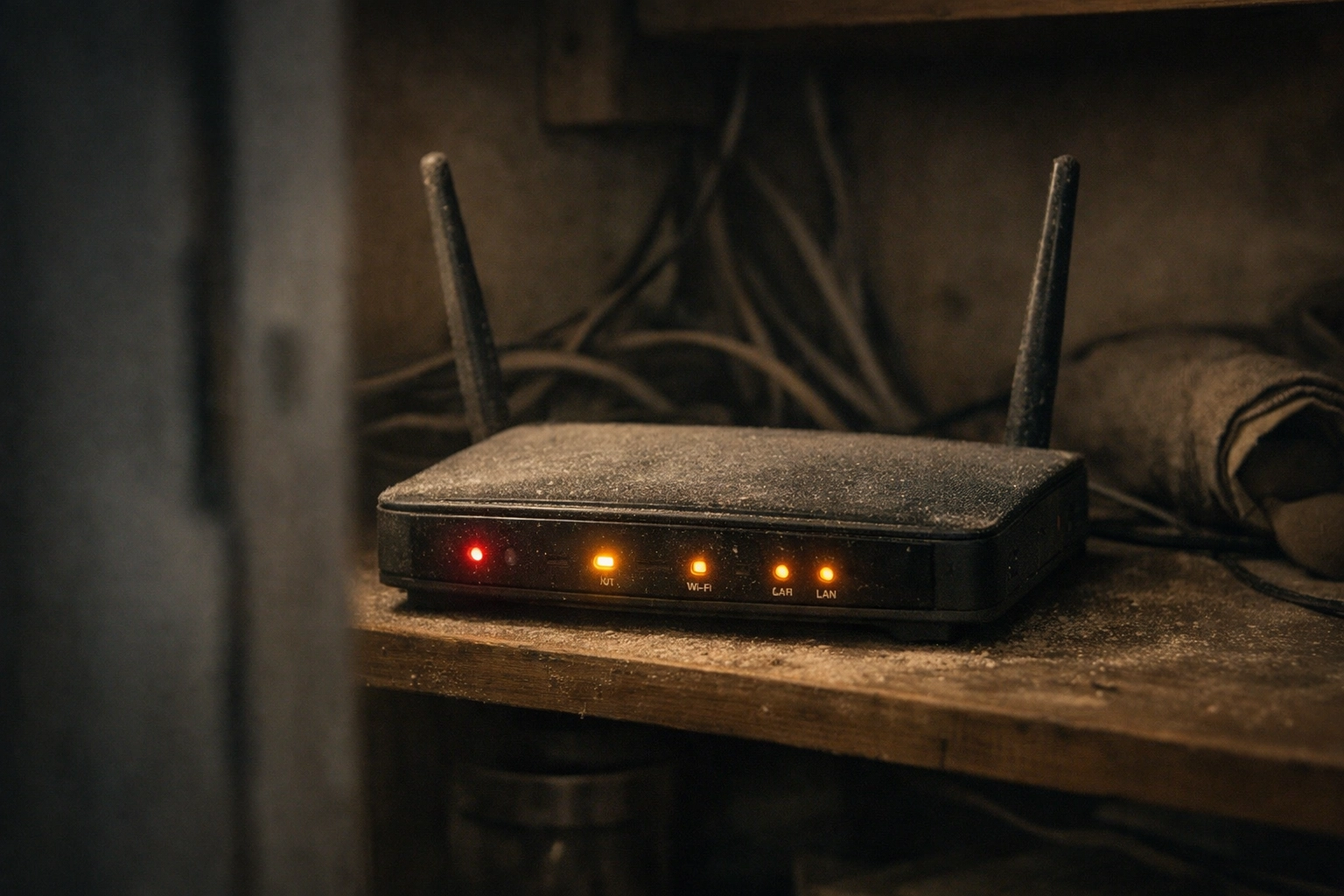
    Dusty old Wi-Fi router with glowing indicator lights in a dim home closet, representing vulnerable outdated network equipment

    The Peace of Mind You're Actually Paying For

    Here's what changes when your home tech is managed like a professional system instead of "figured out as you go":

    You stop wondering. No more "Is this normal?" or "Should I be worried about this?" You have someone monitoring the background: someone whose job it is to worry about router firmware and silent infections so you don't have to.

    You trust your tools again. Your computer becomes something you can rely on for banking, work, and staying connected with family: not something you're constantly second-guessing.

    You reclaim time. No more hours lost to "figuring it out" or waiting for things to load. Your tech works at the speed it's supposed to.

    Your family is safer. Not just from malware: but from scams, phishing emails, and accidental clicks that could compromise everything.

    This is what we mean when we say "America's Personal IT Department." You wouldn't try to be your own cardiologist or your own mechanic. You shouldn't have to be your own IT department, either.


    If your home router is more than two years old, or if you can't remember the last time someone professionally reviewed your setup, let's talk.

    Call us at 410-429-8159 or visit rahvion.com/seniors to schedule a remote consultation. We move at your pace. We explain everything clearly. And we stay until it works.

    Because your home technology should be an asset( not a risk you're quietly living with.)

  • Rahvion Home Page V2: Content & SEO Blueprint

    Rahvion Home Page V2: Content & SEO Blueprint


    SEO Metadata Requirements

    Page Title Tag:
    <title>Rahvion - America's Personal IT Department | Enterprise IT Support for Families</title>

    Meta Description:
    <meta name="description" content="Rahvion is America's Personal IT Department. Get proactive, US-based IT support for families and seniors, featuring our Anti-Gravity Auto-Healer technology that stops tech problems before they start.">

    Primary H1 Tag:
    <h1>Is Your Home Tech a Bottleneck or an Asset?</h1>


    Hero Section: The Hook

    Is Your Home Tech a Bottleneck or an Asset?

    Most families treat home technology like a necessary evil, something that breaks at the worst possible moment, drains hours of your week, and feels like it's working against you instead of for you.

    What if your home tech worked like a professional asset instead? The kind that anticipates problems, fixes itself quietly in the background, and has a human expert on speed-dial who actually speaks your language?

    Stop fighting with your devices. Get enterprise-grade, US-based IT support built for families.

    We monitor, protect, and fix your tech, often before you even know there's a problem. No scripts. No offshore call centers. Just patient, plain-English experts who treat your family like neighbors, not ticket numbers.

    Multi-generational family comfortably using computers and tablets with Rahvion IT support at home

    Primary CTA: Get Started with Core Membership
    Secondary CTA: Talk to a Human


    The "Why Rahvion" Section: What Makes Us Different

    The Anti-Gravity Auto-Healer

    Most IT support waits for you to call them. We don't.

    Our proprietary "Auto-Healer" technology proactively monitors your computers 24/7, detecting and fixing common issues silently in the background, like a digital maintenance crew that never clocks out.

    What does this mean for you?
    Slow startups, frozen programs, security patches, and annoying pop-ups get handled automatically, without you lifting a finger. It's like having an IT department working the night shift in your home.

    US-Based Human Support (Not Scripts, Not Bots)

    When you need help, you get Eva, Stan, or another member of our US-based support team, real people who explain things in plain English, never rush you off the phone, and genuinely care if your Wi-Fi is working.

    No overseas call centers. No reading from scripts. No "Have you tried turning it off and on again?" condescension.

    We treat every call like you're our neighbor asking for help over the fence, because that's exactly the relationship we're building.

    Enterprise Security for Your Living Room

    The same "Zero Trust" cybersecurity used by corporate executives? We bring it to your home.

    Your family's photos, bank accounts, and private conversations deserve the same protection a Fortune 500 company gets, without the Fortune 500 complexity. We handle the heavy lifting. You just live your life knowing you're protected.


    Service Buckets: Who We Serve Best

    For Seniors: Patient, Kind, Scam-Free Support

    Technology should simplify your life, not complicate it. If you've ever felt frustrated by confusing menus, worried about clicking the wrong thing, or wondered if that email is actually a scam, we're here for you.

    What we do:

    • Walk you through anything tech-related, as many times as you need
    • Protect you from online scams and phishing attacks
    • Set up your devices so they're simple, safe, and actually helpful

    Learn more about senior support

    Senior woman confidently using laptop with patient IT support from Rahvion

    For Busy Families: We Handle the Tech So You Don't Have To

    Between work, kids, groceries, and everything else, who has time to troubleshoot a printer, reset the Wi-Fi again, or figure out why the computer is "acting weird"?

    What we do:

    • Monitor your home network 24/7 for security threats
    • Keep backups of your family photos and important documents
    • Fix the "why is this slow?" issues before they ruin movie night

    Learn more about family support

    For Home Office Professionals: Stay Online, Stay Productive

    When your home is your office, downtime isn't just annoying, it's expensive.

    What we do:

    • Keep your internet connection fast and reliable
    • Ensure your video calls don't freeze mid-meeting
    • Protect your work files with professional-grade security

    Learn more about work-from-home support


    How It Works: Simple, Human, Proactive

    Step 1: Join Core Membership

    Get 24/7 Auto-Healer monitoring, unlimited phone support, and access to our US-based team for one flat monthly rate.

    View Core Membership pricing

    Step 2: We Install the Auto-Healer

    We remotely install our monitoring software on your computers (takes about 10 minutes). From that moment on, we're watching for issues in the background, like a digital guardian that never sleeps.

    Step 3: Relax and Let Us Handle It

    Your tech gets healthier over time. Problems get fixed before they become emergencies. And when you do need help? Call, text, or email us during business hours (Monday–Friday, 8 AM–5 PM EST) and a real human answers.

    Call Us: 410-429-8159
    Information Line: 410-219-7559
    Email: helpdesk@rahvion.com


    Pricing That Makes Sense

    Core Membership: $50/Month Per Computer

    What's included:
    ✅ 24/7 Auto-Healer monitoring and automatic fixes
    ✅ Unlimited phone, email, and text support (M–F, 8–5 EST)
    ✅ Monthly health reports on your devices
    ✅ Priority scheduling for remote or on-site support

    Not a member yet? No problem.
    Emergency support available at $100 for the first hour, then $50/hour after.

    Join Core Membership Today

    Professional home office workspace with laptop showing IT monitoring and security software


    Real Questions from Real Families

    "What if I'm not tech-savvy at all?"
    Perfect. That's exactly who we built this for. We explain everything in plain English, never use jargon, and repeat ourselves as many times as you need. You're not bothering us, you're the reason we exist.

    "Do you actually answer the phone?"
    Yes. During business hours (Monday–Friday, 8–5 EST), a real human picks up. After hours, leave a message and we'll respond first thing the next business day.

    "What's the Auto-Healer, really?"
    It's monitoring software that watches your computer 24/7 for common issues: slow performance, security vulnerabilities, software conflicts: and fixes them automatically in the background. Think of it like a smoke detector, but for your tech.

    "Can you help with my phone/tablet/smart TV?"
    Absolutely. If it connects to the internet, we can help troubleshoot it.


    The Choice You're Really Making

    Here's the truth: your home tech is already a system. The question is whether it's working for you or against you.

    Most families live with the bottleneck version:

    • Wi-Fi drops during Zoom calls
    • Computers slow down every few months
    • Printers refuse to print on deadline day
    • "Tech support" means calling a friend or Googling until 2 AM

    We help you build the asset version:

    • Problems get fixed before you notice them
    • Someone's always monitoring your network for threats
    • When you need help, a human expert picks up the phone
    • Your devices stay fast, secure, and actually helpful year after year

    Which version do you want living in your home?


    Ready to Stop Fighting with Your Tech?

    First time here? Browse our services or schedule a quick intro call with Eva or Stan. We'll answer your questions, explain exactly how we work, and help you decide if Rahvion is the right fit for your family.

    Already convinced? Join Core Membership now and get your first Auto-Healer installation scheduled within 48 hours.


    Rahvion LLC
    Monday–Friday, 8 AM–5 PM EST
    📞 Call Us: 410-429-8159
    📞 Information: 410-219-7559
    📧 helpdesk@rahvion.com

    America's Personal IT Department. Enterprise support for families who deserve better.

  • Slow PC Driving You Crazy? 5 Steps to Speed Up Your Computer (Without Buying a New One)

    Slow PC Driving You Crazy? 5 Steps to Speed Up Your Computer (Without Buying a New One)

    Is Your Computer a Bottleneck or an Asset?

    Here's the question most families never ask: Is your home computer helping you get things done, or is it quietly stealing 20 minutes from your day, every single day?

    If you're clicking "Open" and waiting. Clicking "Save" and staring. Restarting because "maybe this time it'll be faster", your computer isn't a tool anymore. It's a bottleneck. And the worst part? Most people assume the only fix is spending $800 on a new machine.

    But what if the problem isn't your hardware, it's that your system has been slowly accumulating digital clutter for months (or years), and nobody's ever shown you how to clear it out?

    At Rahvion, we help families turn their home tech from a source of daily frustration into a professional-grade asset, the kind that boots up in seconds, doesn't freeze mid-email, and just works. Today, we're walking you through five steps that can transform your sluggish PC without spending a dime on upgrades.

    Frustrated user waiting for slow computer to load at home office desk

    The Deep Diagnostic: Why Is Your Computer Actually Slow?

    Before we dive into fixes, let's talk about what's really happening under the hood. When people say "my computer is slow," they usually mean one of three things:

    1. It takes forever to boot up (5+ minutes from power button to usable desktop)
    2. Programs freeze or lag (you click, nothing happens, then everything catches up at once)
    3. The whole system feels sluggish (like you're typing through molasses)

    Here's the root cause most families miss: Your computer isn't broken, it's overloaded.

    Every program you install, every file you save, every browser tab you leave open, they all leave a trace. Over time, your system accumulates:

    • Startup programs running invisibly in the background (stealing memory before you even open a file)
    • Temporary files that were supposed to delete themselves but didn't (clogging up your hard drive)
    • Outdated drivers and software that create conflicts (causing random freezes and crashes)

    Think of it like this: your computer is a kitchen. When it was new, the counters were clear, the sink was empty, and you could cook a meal in minutes. But now? Dirty dishes are piled up, the trash is overflowing, and you can't find anything. The kitchen still works, it just needs a deep clean.

    That's what we're about to do for your PC.

    Step 1: Restart Your Computer (No, Really, Do It Weekly)

    This sounds almost insulting, right? "Just turn it off and on again?" But here's what most people don't realize: restarting isn't just a troubleshooting step, it's maintenance.

    When your computer runs for days (or weeks) without restarting, it accumulates something called memory leaks. Programs open, use up RAM, and then don't fully release it when you close them. Over time, your available memory shrinks to nothing, and everything slows to a crawl.

    A proper restart clears all that out. It's like wiping the whiteboard clean at the end of the day.

    Here's the rule we teach families: Restart your computer at least once a week. Better yet, enable automatic restarts during your "off hours" (like 2 a.m. on Sunday). Windows and Mac both support this, it's just hidden in your settings.

    If you've been running your computer non-stop for 30+ days, restart it right now. You'll be shocked at the difference.

    Computer RAM and processor components showing internal hardware that affects PC speed

    Step 2: Clean Up Your Desktop (It's Not Just About Looks)

    Pop quiz: How many icons are sitting on your desktop right now? If the answer is "more than 20," that's part of your slowdown problem.

    Here's why: Every icon on your desktop is a file that your computer has to load into memory when it boots up. A cluttered desktop doesn't just look messy, it actively consumes system resources.

    The fix:

    1. Create a folder in your Documents called "Desktop Cleanup"
    2. Move everything from your desktop into that folder (yes, everything)
    3. Now, only put back the 5-10 shortcuts or files you actually use daily

    This isn't about being a minimalist: it's about giving your computer less work to do at startup. You're not deleting anything; you're just organizing it in a way that doesn't bog down your system.

    Bonus tip: Empty your Downloads folder while you're at it. That folder is where installer files go to die, and chances are it's hoarding gigabytes of old setup files you'll never need again.

    Step 3: Disable Unnecessary Startup Programs

    Here's the silent killer: programs that launch automatically when you turn on your computer.

    Right now, there are probably a dozen apps running in your system tray that you didn't open and don't need. Microsoft Teams. Skype. Steam. Adobe Updater. Spotify. Every single one of them is stealing a piece of your computer's attention before you've even opened your email.

    How to fix it:

    On Windows:

    1. Press Ctrl + Shift + Esc to open Task Manager
    2. Click the "Startup" tab
    3. Look for anything labeled "High impact" or "Enabled" that you don't use daily
    4. Right-click and select "Disable"

    On Mac:

    1. Go to System Settings (or System Preferences)
    2. Click "General" → "Login Items"
    3. Remove anything you don't need at startup

    Be cautious here: don't disable anything you don't recognize (like "Windows Security" or "Graphics Driver"). When in doubt, Google the program name first. But things like "Spotify" or "OneDrive" (if you don't use cloud storage)? Disable them. You can always open them manually when you need them.

    Before and after comparison of cluttered versus organized workspace for better computer performance

    Step 4: Update Windows, macOS, and Drivers

    This is the step most families skip because updates feel like an interruption. But here's the truth: outdated software is one of the top causes of poor performance.

    Software updates aren't just about new features: they include bug fixes, security patches, and performance improvements. When you skip updates for months, you're running on code that's known to have problems.

    How to update:

    Windows:

    1. Click Start → Settings → Windows Update
    2. Click "Check for updates"
    3. Install everything, including "Optional updates" (especially driver updates)

    Mac:

    1. Click the Apple menu → System Settings → General → Software Update
    2. Install all available updates

    Here's the deeper issue: outdated drivers (the software that lets your computer talk to hardware like your graphics card or printer) can cause random freezes and crashes. Most people never update them because they don't know they exist.

    If your computer is still slow after updating Windows or macOS, search for "[your computer brand] driver update utility" and run it. Dell, HP, Lenovo: they all have tools that scan your system and update drivers automatically.

    Step 5: Delete Temporary Files and Empty Your Recycle Bin

    Your computer creates temporary files constantly: every time you browse the web, install software, or open a document. These files are supposed to delete themselves, but they don't always. Over time, they pile up and eat into your hard drive space.

    Why does this slow you down? If your hard drive is more than 85% full, your computer struggles to find space to work. It's like trying to cook in a kitchen with no counter space left: technically possible, but painfully slow.

    How to clean it up:

    Windows:

    1. Type "Disk Cleanup" in the Start menu and open it
    2. Select your C: drive
    3. Check all the boxes (especially "Temporary files" and "Recycle Bin")
    4. Click "Clean up system files" for an even deeper scan

    Mac:

    1. Click the Apple menu → About This Mac → Storage → Manage
    2. Use the "Recommendations" to clear out old files, empty trash, and remove clutter

    Don't forget to actually empty your Recycle Bin (Windows) or Trash (Mac). Deleted files aren't really gone until you do this: they're just sitting in a holding area, still taking up space.

    Task manager displaying system performance metrics on computer monitor screen

    What If It's Still Slow?

    If you've done all five steps and your computer is still dragging, you're likely dealing with one of three deeper issues:

    1. Malware or bloatware running invisibly in the background
    2. A failing hard drive (especially if you hear clicking sounds)
    3. Maxed-out RAM (not enough memory for your daily workload)

    This is where most families hit a wall. You've done the "easy" maintenance, but diagnosing hardware failure or hidden malware? That requires tools and expertise most people don't have.

    At Rahvion, this is exactly what we do. We remotely monitor your home computers for these deeper issues: the ones that don't show up in Task Manager. We catch failing hard drives before they crash. We identify malware that antivirus software misses. And when it's time to upgrade (because sometimes hardware really is the issue), we guide you to the right solution without the upsell tactics you'd get at a big-box store.

    We're not here to sell you a new computer. We're here to turn the one you have into a professional-grade asset that actually supports your life instead of slowing it down.

    From Bottleneck to Asset: The Bigger Picture

    Here's the shift we want you to see: Your home computer isn't just "a thing you use sometimes." In 2026, it's your tax records, your family photos, your kids' homework, your work-from-home lifeline, your connection to aging parents.

    When it's slow, unstable, or unreliable, it's not just annoying: it's a daily tax on your time, your patience, and your peace of mind.

    The five steps above will buy you speed and stability for now. But if you're reading this and thinking, "I wish someone just handled this for me": that's the kind of thinking that leads families to work with us.

    We're America's Personal IT Department. We don't wait for your computer to break. We monitor it, maintain it, and keep it running like the professional-grade tool it should be.

    Curious what that looks like in practice? Learn more about Rahvion's home tech support here.


    Need help right now? Call us at 410-429-8159 (Mon–Fri, 8 AM–5 PM ET) or email helpdesk@rahvion.com. We'll walk you through it: no judgment, no jargon, just patient guidance.

  • Hello world!

    Welcome to WordPress. This is your first post. Edit or delete it, then start writing!